Introduction
We use JobTread to manage our projects and communicate with our crews. One of its key features is the Bid Request — a digital document where you can see the full scope of a job and submit your price directly, without any back-and-forth calls or emails.
This guide walks you through the full process in a few simple steps.
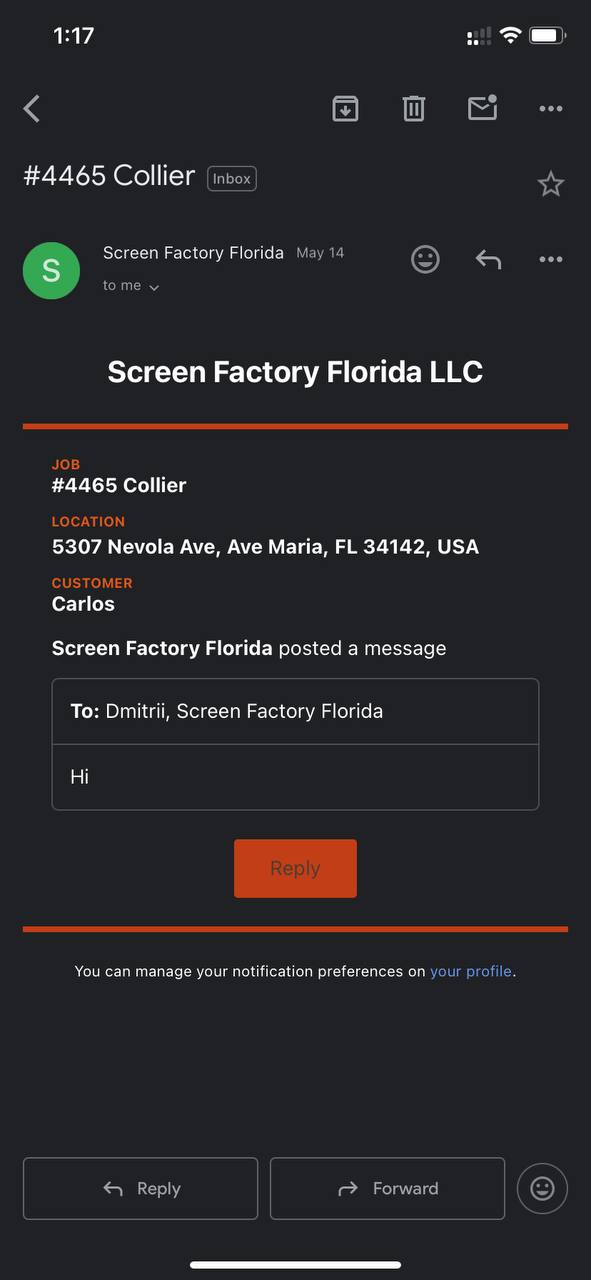
How You'll Be Notified
When we send you a Bid Request, you'll receive two notifications:
- Email — Contains a link to open the Bid Request in your Vendor Portal.
- SMS — A text message so you don't miss the email.
The SMS will look like this:
Accessing the Bid Request
Open the email and click the link inside. It will take you directly to your Vendor Portal — no login or password required.
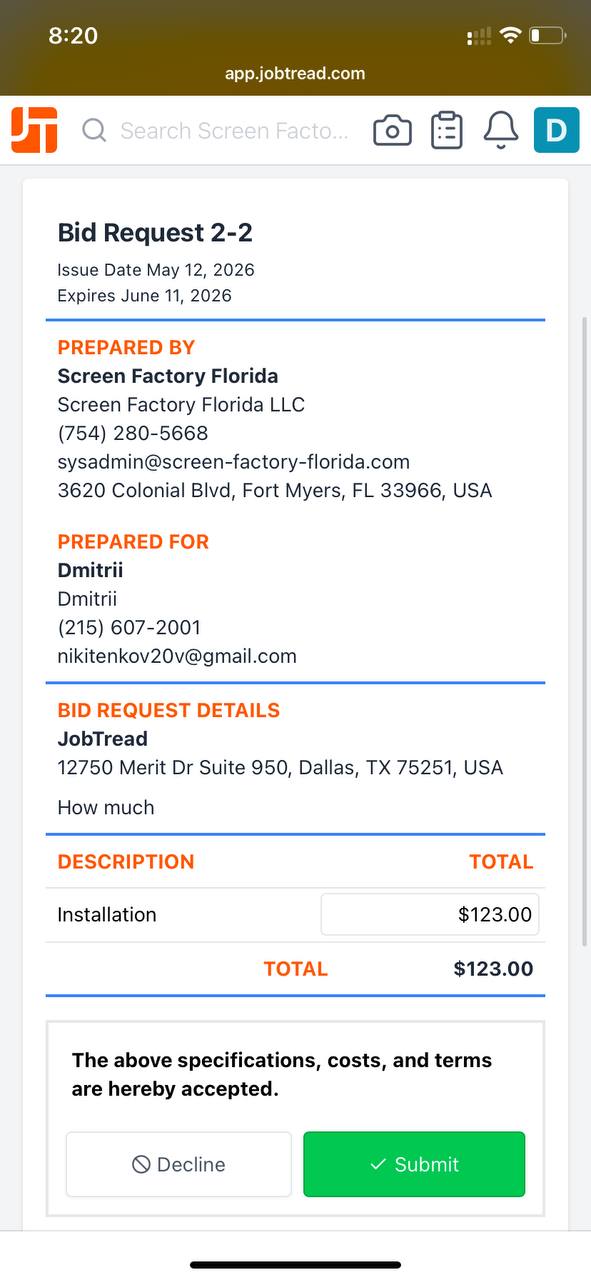
Once inside, you'll see:
- Job name and basic project details
- Scope of work description
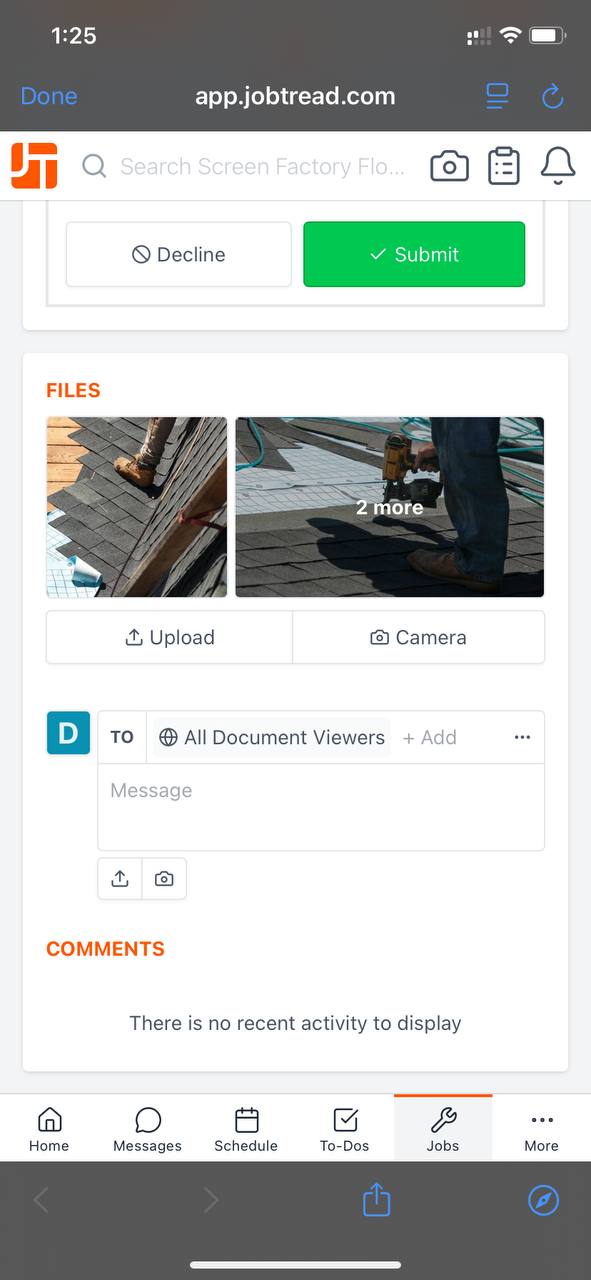
- Attached files, photos, or videos
Reviewing the Bid Request
Before entering your prices, take a moment to review the full scope of work carefully.
- Read through each line item and its description
- Click on any attached photos, files, or videos to expand and review them
- Make sure you understand everything that's included before submitting
If anything is unclear, you can message us directly through the portal (see Section 7) or message your manager on WhatsApp.
Filling Out Your Bid
For each line item, enter your quantity and price. Fill in only the fields that apply to your scope of work.
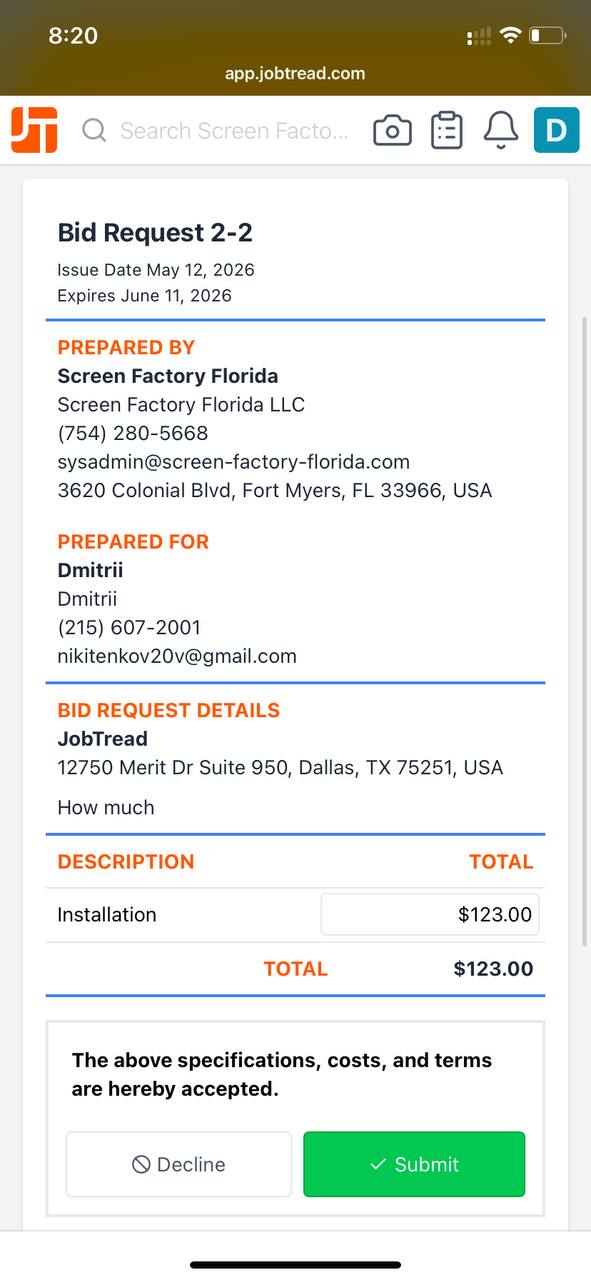
If you have any comments or questions about specific items — materials, timing, or conditions — send us a message through the portal or on WhatsApp.
Submitting Your Bid
Once you've filled in all your prices, click the Submit button at the bottom of the document.
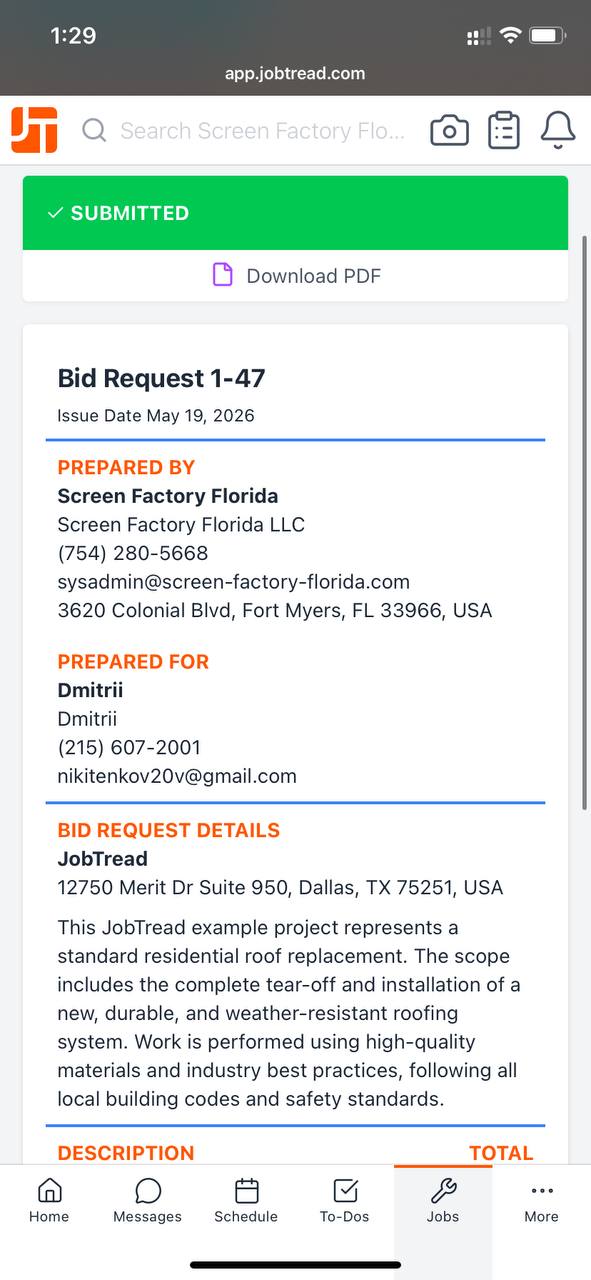
After submission, we'll review your bid on our end and we'll be in touch.
After Submission
If your bid is accepted, you'll receive further instructions on the next steps.
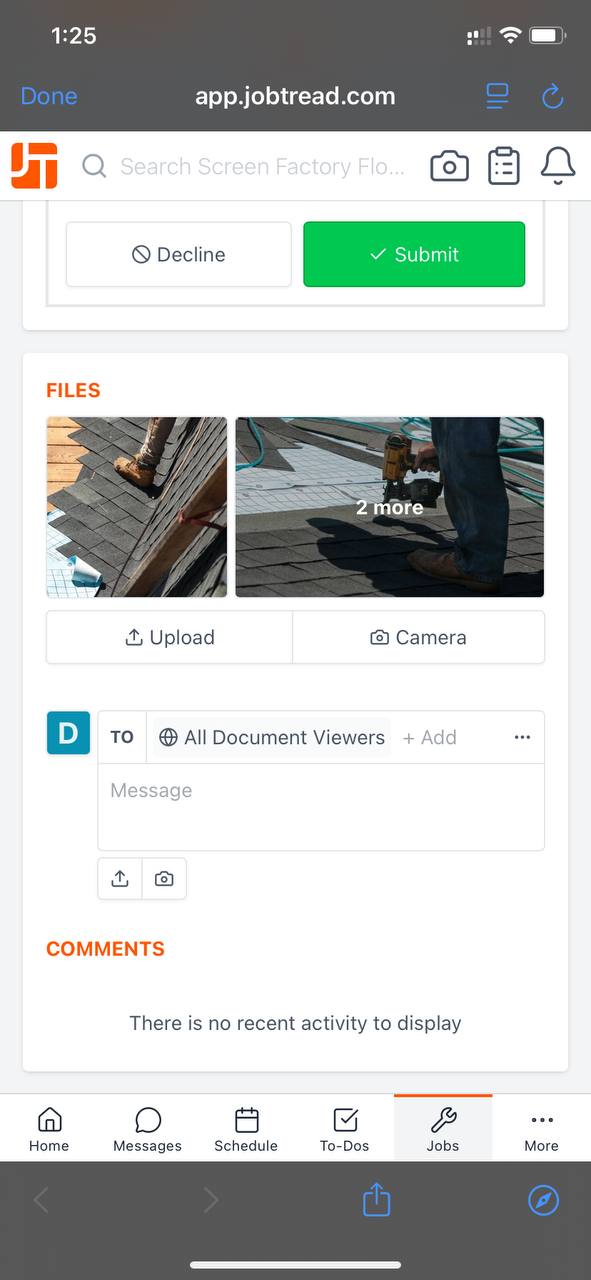
You can also use the Vendor Portal or WhatsApp to communicate with us at any time — ask questions, share updates, or clarify scope.